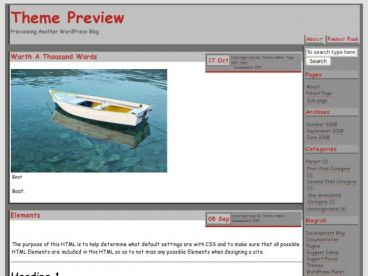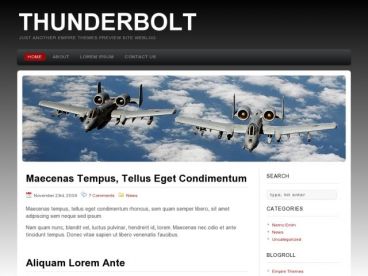

Photo-Biyori WordPress Theme By Anonymous, Theme Type: Blogging, Photography , free trial: available
Photo-Biyori WordPress Theme Features
– Generate thumbnail automatically.
– Insert thumbnail automatically.
– Built-in thumbnail navigation.
– Buit-in random link navigation.
– Widget ready.
– Comment threading ready.
– Default picture size: 500 px
– Default thumbnail size:60 px x 60 px
Requirements
– WordPress 2.7+
STEP 1 – Installation
Download Photo-Biyori theme.
Photo-Biyori LT or Photo-Biyori DK
Upload Photo-Biyori folder under /wp-content/themes/.
STEP 2 – Settings
Login to your admin panel.
Choose Photo-Biyori as your theme from Appearance > Themes.
Settings > Media > Image sizes
Thumnail size – width 60 / height 60
Check “Crop thumbnail to exact dimensions (normally thumbnails are proportional)”.
Medium size: Max width 500 / Max height 500
Settings > Reading > Blog pages show at most 36(*1)
If you use comment threading
Settings> Discussion > Other comment settings
Check “Enable threaded (nested) comments x levels deep”.
STEP 3 – How to Post
Use WordPress default media uploader. In upload window, choose “Alignment – None, Size – Medium” and insert into post. At this point, the excerpt field is still blank. Once you click “Save Draft”, the thumbnail code appears in the excerpt field.(*2)
STEP 4 – How to Create Pages
Archives page
Page slug: archives-index(*3)
Attributes > Tempate > Archives
Tags page
Attributes > Tempate > Tags
Links page
Attributes > Tempate > Links